People search for QuillBot on a Mac for a simple reason: copying text into a website, paraphrasing it and pasting it back gets old fast. This guide explains what QuillBot offers on macOS today, how to download and set it up, how to use it in Microsoft Word on a Mac, what to do when it doesn't appear, and how it compares with other ways to rewrite text on a Mac.
Full disclosure: Rewritly is our product. Details about QuillBot come from QuillBot's own pages and help center, checked on November 9, 2026, and we point out where QuillBot is the better fit.
Does QuillBot have a Mac app?
Yes. QuillBot's apps page lists desktop apps for macOS and Windows, browser extensions for Chrome, Edge and Safari, a Word add-in, and phone apps for iOS and Android. QuillBot says its macOS app works like a Chrome extension: a widget appears in supported desktop apps so you can get grammar suggestions and rephrase sentences without opening a browser tab.
According to QuillBot's macOS page and help center:
- It's free to install and use. QuillBot says you can use QuillBot for free on macOS "for as long as you'd like", with Premium adding more in-depth suggestions and customizable features.
- It works in desktop apps. QuillBot names Notes, Messages, Slack, Teams, Microsoft Word, Outlook, WhatsApp and Apple Mail.
- It does not work inside your web browser. For websites, QuillBot points you to its Chrome extension instead.
- You choose which apps it can access. During setup you pick the apps it may work in, and you can change this later under Settings, then "Active Apps", from the QuillBot icon at the top right of your screen.
- One subscription covers every platform. If you pay for Premium, it applies across QuillBot's apps and extensions.
Two features on QuillBot's macOS page are marked "Coming soon": grammar explanations with examples, and tone and fluency statistics. Check the page for the current list before you rely on a specific feature.
How to download QuillBot for Mac
The safest route is QuillBot's own site, not a third-party download mirror.
- Open quillbot.com/app/mac in Safari or Chrome on your Mac.
- Click Install for free to download the macOS installer.
- Open the downloaded file and follow the installation steps.
- When prompted, choose which apps QuillBot may access. Start with the two or three apps where you write most, such as Mail, Slack and Word.
- Sign in to your QuillBot account if you want your Premium plan to carry over.
If macOS asks you to allow QuillBot under Accessibility, that's normal: Mac apps that read or change text in other apps' windows need that permission. You can review it later in System Settings under Privacy & Security.
Is QuillBot free on Mac?
Yes. QuillBot's help center says the macOS app is free to use for as long as you like. What you can do in it depends on your plan. On November 9, 2026, QuillBot's Premium page listed these limits:
- Free: paraphrase up to 125 words at a time in 2 modes (Standard and Fluency), basic grammar fixes, and summaries up to 1,200 words.
- Premium: full paraphrasing in 9 modes plus custom modes, advanced grammar suggestions, tone insights and a plagiarism checker. It's billed monthly or yearly and shown in your local currency.
QuillBot notes that usage limits "may vary by surface", so the Mac app's limits can differ slightly from the website's.
How to use QuillBot in Word on a Mac
There are two ways to get QuillBot into Microsoft Word on a Mac:
- The macOS app. QuillBot's macOS FAQ says you can use the desktop app to edit your writing in Microsoft Word. Install the app, allow it to access Word, and the widget appears while you type.
- The Word add-in. QuillBot also lists a separate Word add-in on its apps page. Add-ins live inside Word itself, so you'd open it from Word's add-ins area rather than from your menu bar.
If you only write in Word, either route works. If you write in Word, Mail and Slack, the desktop app covers more ground with one install.
Why is QuillBot not showing on my Mac?
If you've installed QuillBot and the widget doesn't appear, work through these in order:
- Check Active Apps. Click the QuillBot icon at the top right of your screen, open Settings, then Active Apps, and make sure the app you're typing in is turned on.
- Check macOS permissions. In System Settings, open Privacy & Security, then Accessibility, and make sure QuillBot is turned on if it's listed.
- Quit and reopen the app you're writing in. Some apps only pick up a new helper after a restart.
- Check whether you're in a browser. If you're typing in Gmail or Google Docs in Safari or Chrome, the macOS app won't appear. You need QuillBot's browser extension.
- Sign out and back in if Premium features aren't showing.
If it still won't appear, QuillBot's help center has a macOS section with its own support articles.
QuillBot for Mac vs other ways to rewrite on a Mac
QuillBot isn't the only option. Here's how the main approaches compare for everyday writing on a Mac.
| QuillBot for macOS | Copy-paste into a website or AI chat | Rewritly | |
|---|---|---|---|
| Where it works | Supported desktop apps (Notes, Messages, Slack, Teams, Word, Outlook, WhatsApp, Apple Mail); websites need its browser extension | Any app, but you copy text out and paste it back | Almost any app where you type, and websites with no extension: Gmail, Google Docs, Slack, Notion, WhatsApp Desktop, LinkedIn, Word and Outlook |
| How you start | A widget inside supported apps | Switch windows, paste, prompt, copy, switch back | Click the small icon next to your cursor or press Cmd + Shift + Space |
| Main strength | Paraphrasing with several modes, plus QuillBot's study tools | Flexible prompts | One-click fixes for messages and emails: Fix grammar, Improve, Shorter, Longer, Formal, Friendly, and Ask anything |
| Free plan | Free app; paraphrase up to 125 words at a time in 2 modes | Depends on the tool | 10 rewrites a day with every feature, no card needed |
| Paid price | Premium, shown in your local currency | Depends on the tool | $7 a month, $19 for 3 months or $59 a year |
| Also on Windows | Yes, QuillBot lists a Windows app | Yes | Yes, Windows 10 and 11 (64-bit) |
QuillBot details checked on quillbot.com/app, quillbot.com/app/mac, quillbot.com/premium and QuillBot's help center on November 9, 2026. Rewritly details from getrewritly.com.
For a side-by-side on plans and study tools, see our full Rewritly vs QuillBot comparison.
When QuillBot is the better choice on a Mac
Be honest about what you need. QuillBot is likely the better fit if:
- You paraphrase long passages for essays, articles or research and want to choose between several rephrase modes.
- You need study tools such as a citation generator, a plagiarism checker or an AI detector. Rewritly has none of these.
- You already pay for QuillBot Premium and want the same plan on your Mac, browser and Word.
When a QuillBot alternative makes more sense
Many people looking for QuillBot on a Mac don't actually want a paraphrasing tool. They want their Slack message to sound less blunt, their email to sound professional, or their grammar fixed before they hit Send. For that kind of work, the fastest tool is the one that works in every text field, including the browser, without a list of apps to switch on.
That's what Rewritly is built for. It's a small Mac and Windows app (about 5 MB) that lives in your menu bar. Select text in any app or website, click the small icon next to your cursor or press Cmd + Shift + Space, choose a fix and press Replace. The new text goes straight back where you typed it. There's no browser tab, no extension and no copy-paste.
What you can do with Rewritly on a Mac
- Fix grammar in one click, or select text and press Control + Shift + G to fix it right there without opening Rewritly.
- Change the tone with Formal or Friendly, for a client email or a quick team reply.
- Shorten or lengthen a message with Shorter or Longer.
- Improve clunky sentences so they read naturally.
- Ask anything in plain language, such as "make this polite", "summarize this" or "translate to Hindi".
- Use a key for each fix. Improve, Shorter, Longer, Formal and Friendly have their own keys too (Control + Shift + I, H, L, F and Y). You can change them, or give your own saved prompts a key.
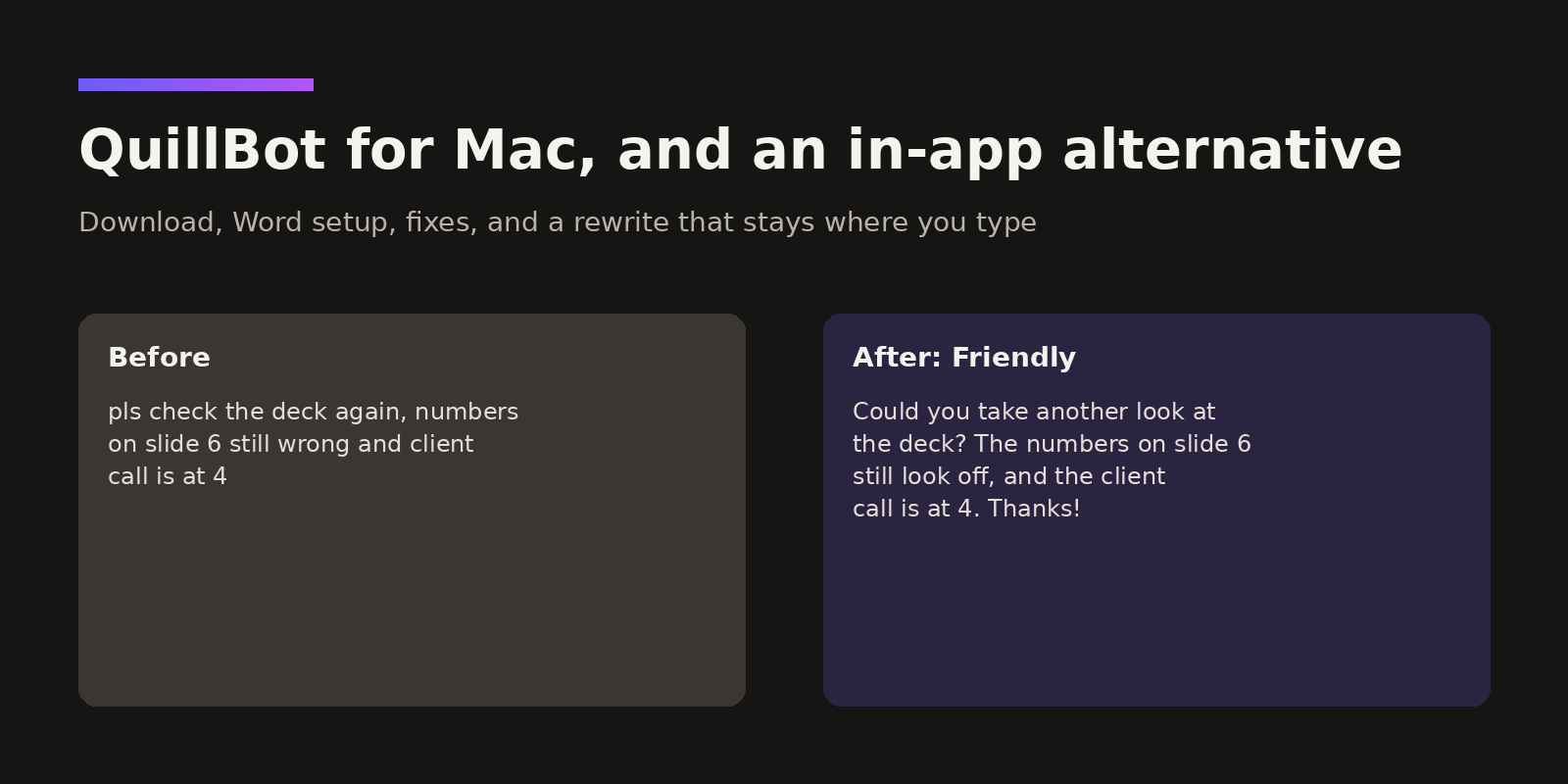
Example: a quick rewrite inside Slack
Say you typed this in Slack:
pls check the deck again, numbers on slide 6 still wrong and client call is at 4
Select it, choose Friendly, and Rewritly suggests something like:
Could you take another look at the deck? The numbers on slide 6 still look off, and the client call is at 4. Thanks!
Press Replace and the friendlier version sits in the Slack box, ready to send. The same flow works in Mail, Gmail, Notion, LinkedIn, Word or WhatsApp Desktop.
Privacy and requirements
Rewritly only sends text when you ask it for help. It ignores password fields and hides automatically in code editors, terminals and password managers. It needs an internet connection and doesn't work offline. On Mac it needs macOS 11 or later and the Accessibility permission, and comes as a universal download for Apple Silicon and Intel Macs.
QuillBot for MacBook: does it matter which Mac you have?
"QuillBot for MacBook" and "QuillBot for macOS" are the same app. A MacBook Air, MacBook Pro, iMac or Mac mini all run macOS, so you install the same download from QuillBot's Mac page. If your Mac is older, check that your macOS version is supported before you install any writing tool. For Rewritly, that means macOS 11 or later.
If you're on a Mac that doesn't support Apple's built-in Writing Tools, see our guide to Apple Writing Tools not showing on Mac for what to check and what to use instead.
Other options worth knowing
- QuillBot's browser extensions for Chrome, Edge and Safari cover Gmail, Google Docs and other websites, which the macOS app doesn't.
- Apple Writing Tools are built into Macs that support Apple Intelligence (M1 or later), once it's turned on.
- A Grammarly-style checker if you mainly want underlines while you type. Our best Grammarly alternative for Mac post compares several options with prices checked on each vendor's site.
- Rewritly if you want one shortcut for grammar, tone and rewrites in any Mac or Windows app. See the grammar checker for Mac page for the details.
How to choose in two minutes
Ask yourself three questions:
- What do you write most? Essays and research point to QuillBot. Emails, chats and posts point to an in-place rewriter.
- Where do you write? With QuillBot, desktop apps need the Mac app and websites need the extension. Rewritly covers both with one install.
- Do you want suggestions or a finished rewrite? Underline-style suggestions suit careful editing. One-click Replace suits quick messages.
You can install both and keep whichever you reach for after a week. The Rewritly download is free, with no card needed.
FAQ
Does QuillBot have a Mac app?
Yes. QuillBot offers a free macOS app that appears as a widget in desktop apps such as Notes, Messages, Slack, Teams, Microsoft Word, Outlook, WhatsApp and Apple Mail. You can download it from quillbot.com/app/mac.
Is QuillBot for Mac free?
Yes. QuillBot says you can use its macOS app for free for as long as you like. On November 9, 2026, the free plan paraphrased up to 125 words at a time in 2 modes (Standard and Fluency) with basic grammar fixes. Premium adds full paraphrasing, 9 modes plus custom modes, and advanced grammar suggestions.
Can I use QuillBot in Word on a Mac?
Yes. QuillBot's macOS app works in Microsoft Word, and QuillBot also lists a separate Word add-in. The desktop app is the better choice if you also write in Mail, Slack or other apps.
Does QuillBot for Mac work in Safari, Chrome, Gmail or Google Docs?
No. QuillBot says the macOS app doesn't work in your web browser, so it won't appear in Gmail or Google Docs. Use QuillBot's Chrome, Edge or Safari extension for websites.
Why is QuillBot not showing on my Mac?
Click the QuillBot icon at the top right of your screen, open Settings, then Active Apps, and make sure the app you're typing in is turned on. Then check System Settings, Privacy & Security, Accessibility, and restart the app you're writing in. In a browser, you need QuillBot's extension instead.
What is a good QuillBot alternative for Mac?
It depends on the job. For paraphrasing and study tools, QuillBot is hard to beat. For fixing grammar and rewriting emails and messages, Rewritly works in any Mac or Windows app and in the browser, including Gmail and Google Docs, with one shortcut. Its free plan gives 10 rewrites a day with no card needed, and Pro costs $7 a month, $19 for 3 months or $59 a year.
Does Rewritly work offline?
No. Rewritly needs an internet connection. It only sends text when you ask it for help, and it ignores password fields.
The bottom line
QuillBot for Mac is real, free to install, and a good choice if paraphrasing and study tools are your main need. If your day is mostly emails, Slack threads and quick replies, an in-place rewriter that works in every app and website may save you more time. Try it on your own messages: download Rewritly free for Mac or Windows, or see pricing.
Sources (checked November 9, 2026): QuillBot for macOS (quillbot.com/app/mac), QuillBot apps and extensions (quillbot.com/app), QuillBot Help Center macOS section (help.quillbot.com), QuillBot Premium (quillbot.com/premium). Rewritly facts from getrewritly.com and getrewritly.com/llms.txt.