Full disclosure: Rewritly is our product. The language details below come from WhatsApp's help center, checked on November 3, 2026. The other steps are general troubleshooting, so menus may differ on your device.
Fixing it on WhatsApp Web and Desktop
WhatsApp's own explanation is short: autocorrect and spell check on Web and Desktop are based on the language WhatsApp uses on your phone. If you type in a different language, words might be highlighted as misspelled, and WhatsApp says there's no way to change this.
Try these in order:
- Match your languages. Set your phone and computer to the same language, as WhatsApp recommends.
- Update WhatsApp. Install the latest Desktop app, or refresh WhatsApp Web in your browser.
- Restart it. Close WhatsApp Desktop or your browser tab, then open it again.
- Test in another chat. Type a clear mistake such as "recieve" to see whether the problem is with one message or everywhere.
- On WhatsApp Web, check your browser. WhatsApp Web runs inside your browser, so its spell check also needs to be on. In Chrome, open Settings, then Languages, and turn on Spell check. Other browsers have a similar option in their language settings.
If you often type in two languages, correct words may keep being flagged. It doesn't stop you sending the message, so you can ignore those underlines.
Autocorrect not working on Android or iPhone
On a phone, corrections normally come from the keyboard you're using, so check there first:
- Android: open your keyboard's settings and look for text correction or spell check options. In Gboard, that's Text correction, where you can turn on Auto-correction and Spell check. Samsung Keyboard and other keyboards use different menus, so check both the keyboard and your phone's language settings.
- iPhone: in Settings, look under General and then Keyboard, and check that Auto-Correction and Check Spelling are on.
- iPhone, last word not corrected: many people report that the final word isn't corrected when they tap send straight after typing it. Autocorrect usually applies a fix when you type a space or punctuation, so add one before you tap send.
- Both: make sure the language you type in has been added to your keyboard. If you've installed another keyboard app, try switching to see if it behaves differently.
Spell check won't fix grammar
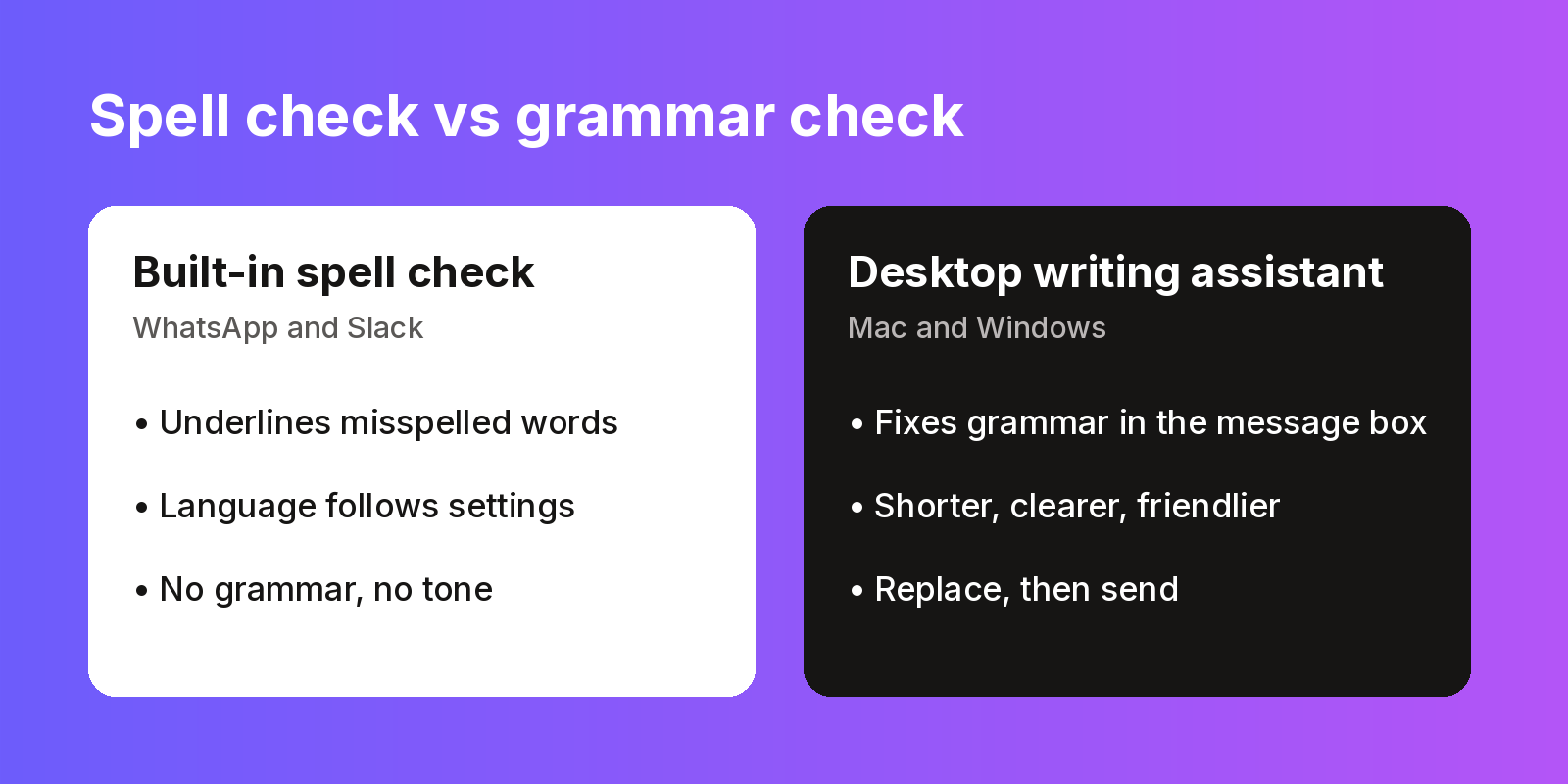
Even when it's working, spell check only catches misspelled words. It won't catch "Me and him was waiting", a message that's too long or one that sounds too blunt.
On a phone, you need a keyboard app with grammar suggestions, such as Grammarly's. On a Mac or Windows computer, Rewritly works in the WhatsApp message box:
- Type your message in WhatsApp Desktop or WhatsApp Web.
- Click the icon next to your cursor, or press the shortcut.
- Pick Fix grammar, Friendly, Formal or Shorter, or ask for something such as "translate to Spanish".
- Press Replace, then send.
Here's an example, written for this guide, using Formal:
- Before: "hi sir i will not able to come office today because i am not feeling well"
- After: "Hello, I won't be able to come to the office today because I'm not feeling well. Thank you for understanding."
See the WhatsApp grammar checker page for more.
Fix grammar in WhatsApp on your computer
The free plan gives you 10 rewrites a day, and no card is needed.
Free plan, no card needed · macOS 11+ · Windows 10/11 · On a phone? Email yourself the link
Source (checked 3 Nov 2026): WhatsApp Help Center: About autocorrect and spell check
FAQ
Why is WhatsApp spell check not working?
On WhatsApp Web and Desktop, the most common cause WhatsApp lists is a language mismatch: spell check follows the language WhatsApp uses on your phone. On a phone, check your keyboard app's text correction settings.
Why does WhatsApp underline words that are spelled correctly?
WhatsApp says that if your device's language isn't the same as the language you're typing in, words might be highlighted as misspelled. It suggests using the same language on your computer and phone.
Can I change the spell check language on WhatsApp Web?
WhatsApp says autocorrect and spell check on Web and Desktop are based on the language WhatsApp uses on your phone, and that there's no way to change this. Its advice is to use the same language on your phone and computer.
Does WhatsApp have a spell check setting?
WhatsApp's help page on autocorrect and spell check doesn't describe a setting for changing the language. On a phone, look in your keyboard's settings instead.
Why is autocorrect not working in WhatsApp on my phone?
WhatsApp uses your phone's keyboard for autocorrect. On iPhone, check Settings, General, Keyboard and turn on Auto-Correction. On Android with Gboard, open Gboard's settings, then Text correction, and turn on Auto-correction. Other keyboards have similar settings.
How do I turn on spell check in WhatsApp Web?
WhatsApp Web runs in your browser, so make sure your browser's spell check is on as well. In Chrome, open Settings, then Languages, and turn on Spell check. Then keep your phone and computer on the same language, as WhatsApp recommends.
Does WhatsApp check grammar?
WhatsApp's help page covers autocorrect and spell check, not grammar or tone. For those, use a writing assistant on your computer or a keyboard app with grammar suggestions on your phone.